Pruning
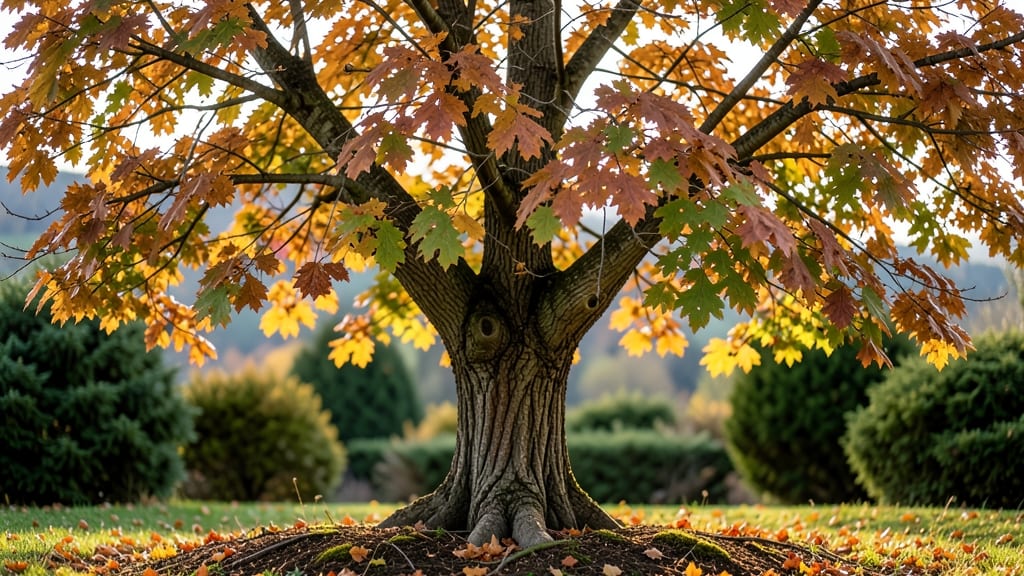
Staring at that mysterious tree in your yard and wondering what tree is this Google can solve for you? 🌳 I’ve been there—spent hours guessing before finally getting the answer.
The good news? You don’t need a degree in botany to figure it out. With just your phone and a few simple steps, you’ll have your tree’s name in seconds.
Start by snapping a clear photo of key features: leaves (shape, edges, veins), bark texture, and any fruit or flowers. Then, use free tools like Google Lens (built into Google Photos) or iNaturalist—just point your camera, and let the app do the work.
For extra accuracy, cross-check with databases like USDA Plants or your local extension service.
You’ll get instant answers, even for tricky species. I’ve identified everything from towering oaks to weird little street trees this way. No more guessing—just science-backed results. The best part? It works for shrubs, vines, and even weeds if you’re curious.
Ready to solve the mystery? Grab your phone and let’s get identifying. No green thumb required—just patience and a good photo.
Why You Struggle To Identify Trees
Ever stood under a towering tree, phone in hand, only to freeze when Google Lens spits back a confusing answer? You’re not alone—tree identification can feel like solving a puzzle with missing pieces.
The frustration often stems from a mix of biological complexity, human limitations, and even technology quirks. Let’s break down the real reasons why your tree-matching mission keeps hitting roadblocks.
Trees are like nature’s fingerprint—no two are exactly alike, even within the same species. Here’s why this causes confusion:
- Genetic Variation: Just like humans, trees have unique traits due to genetics. A red maple in your backyard might have slightly different leaf shape, bark texture, or flower color than one across town. Google Lens relies on generalized databases, which may not account for these subtle differences.
- Hybrids and Mutations: Some trees are hybrids (e.g., Crataegus hawthorns) or sport genetic mutations that blend features of multiple species. If the tree you’re scanning is a rare hybrid, the app might struggle to match it to a single entry.
- Age and Health: A young oak tree looks nothing like a 200-year-old oak. Disease, pests, or environmental stress can warp leaves, bark, or growth patterns, making identification harder. For example, a dutch elm disease-infected tree might lose its classic leaf shape entirely.
Actionable Fix: Take multiple photos—close-ups of leaves, bark, flowers/fruit, and the full tree shape. The more angles and details you provide, the better the app’s chances of piecing together the puzzle.
Google Lens is a powerhouse, but it’s not a botanist with a magnifying glass. Here’s how tech falls short:
- Database Gaps: The app’s tree database is vast but not exhaustive. Rare or regional species (e.g., Torreya taxifolia, the Florida torreya) might not be included, or their entries could be outdated. If your tree isn’t in the system, the app will either guess wrong or say, “I don’t know.”
- Lighting and Angle Issues: Lens thrives on clear, well-lit images. Backlighting, shadows, or blurry shots can distort features the app needs to recognize. For example, a leaf’s venation pattern (the veins) is critical for ID—but if the photo is too dark, those details vanish.
- Seasonal Blind Spots: Trees change dramatically with seasons. A dogwood in spring (with its iconic flowers) is easy to spot, but in winter? Just a bare branch. Google Lens may not account for seasonal variations, leading to misidentifications.
Actionable Fix:
- 🔍 Shoot in natural light (morning or late afternoon) and avoid backlighting.
- 🌳 Include seasonal clues—if it’s winter, snap a photo of buds or bark; in fall, focus on leaf color.
- 📱 Use the “Search with Lens” feature in Google Photos or the standalone app, which often has a more updated database.
Sometimes, the problem isn’t the tree or the tech—it’s you. Here’s how our brains (and habits) mess with identification:
- Over-Reliance on One Feature: Many people fixate on leaves (“It’s got serrated edges—must be an oak!”) but ignore other clues like bark, buds, or fruit. Trees have multiple identifying traits, and ignoring any of them narrows the app’s (and your) chances of success.
- Assuming the Obvious: If a tree looks like a “typical” oak or maple, we might dismiss other possibilities. But what if it’s a boxelder (a maple relative) or a hackberry (often mistaken for an elm)? The app might too, if you don’t provide enough context.
- Ignoring Location Data: Trees grow in specific climates. A monterey pine in California makes sense, but the same tree in Minnesota? Unlikely. Google Lens can use your location to filter results—enable GPS in the app to improve accuracy.
Actionable Fix: Use the “Tree ID Checklist” method:
- 🍃 Leaves: Shape, edges, veins, arrangement (alternate vs. opposite).
- 🌰 Fruit/Seeds: Acorns, samaras (helicopter seeds), berries, or cones.
- 🌲 Bark: Smooth, ridged, scaly, or peeling?
- 🌿 Branches/Buds: Are buds fuzzy, pointed, or clustered?
Trees don’t grow in a vacuum—they adapt to their surroundings. These factors can make ID tricky:
| Factor | How It Affects ID | What to Do |
|---|---|---|
| 🌞 Sun vs. Shade | Shade-grown trees often have larger leaves with different colors. A sugar maple in full sun might look nothing like one under a canopy. | Note the tree’s light exposure in your search. |
| 💧 Water Availability | Drought-stressed trees may have smaller leaves or early leaf drop. A willow oak in a swamp vs. a dry field can look distinct. | Describe the soil moisture in your search (e.g., “wet soil” or “dry hillside”). |
| 🌡️ Climate Zones | Some trees (like southern magnolias) thrive in humid climates but struggle in arid regions, altering their growth. | Use your location settings and mention climate if the app asks. |
Pro Tip: If you’re still stuck, try reverse image search on Google Images. Upload your best photo—sometimes the crowd-sourced web finds matches where Lens fails!
Identify Your Tree Quickly
Stumped by an unfamiliar tree in your yard, park, or neighborhood? Google Lens (or other plant ID tools) can solve the mystery in seconds—but sometimes you need a backup plan. Below are practical, step-by-step solutions to pinpoint your tree’s identity, whether you’re a gardener, homeowner, or curious nature lover.
We’ll also cover how to prevent future guesswork and keep your tree-care knowledge sharp.
Before firing up Google Lens or typing into an app, collect visual and physical details to narrow down the options. A few extra seconds now save hours of scrolling through irrelevant results later.
- 🍃 Leaves: Shape, size, edge (smooth, serrated, lobed), and arrangement (alternate, opposite, whorled). - Pro Tip: Snap a photo of a single leaf (not the whole tree) for clearer details. - 🌰 Fruit/Seed Pods: Are they acorns, pinecones, samaras (helicopter seeds), or berries?
Note color, shape, and texture. - 🌳 Bark: Smooth, rough, flaky, or deeply furrowed? Bark changes with age—check both young and mature sections. - 🌿 Growth Habit: Is the tree tall and straight, bushy, or sprawling?
Does it lose leaves annually (deciduous) or keep them year-round (evergreen)? - 🌍 Location: Native range matters! A palm tree in Minnesota? Probably not. A maple in Florida? Unlikely.
💡 Quick Fix: Use a printable tree ID cheat sheet (like those from the USDA Forest Service) to compare your notes against common species.
Google Lens is your fastest friend, but a few tweaks can turn a vague match into a confident ID.
🔥 How to Take the Perfect Photo for ID
- 🍳 Focus on Distinctive Features: Zoom in on leaves, bark, or flowers—not the whole tree. A close-up of a single acorn or bud often works better than a blurry canopy shot.
- 👨🍳 Lighting Matters: Shoot in natural light, avoiding harsh shadows or backlighting. Early morning or late afternoon is ideal.
- 🥘 Include a Reference: Hold a penny or ruler next to the leaf/bark to give scale (helps apps distinguish between a tiny oak leaf and a giant magnolia one).
- 🔪 Angle Wisely: Take multiple angles—top-down for leaves, side-view for bark, and a full-tree shot if possible.
🎯 How to Search for the Best Results
- Open Google Lens (via Google app or lens.google.com).
- Select "Text" mode first—sometimes the app misreads plants as text. If that fails, switch to "Object" or "Landmark."
- Tap the camera icon and center your subject.
For best results: - Crop tightly around the feature (e.g., just the leaf or bark). - Avoid zooming digitally—move closer instead. 4.
If the first result is unclear, tap "Search Google" and refine with keywords like: - "Tree with [your clue] leaves in [your region]" - "Small evergreen tree with red berries"
✨ Pro Tip: If Google Lens fails, try reverse image search by uploading the photo to Tineye or PlantNet.
Google Lens isn’t the only game in town. These free apps offer databases and expert-backed IDs:
| App | Best For | Why Use It? |
|---|---|---|
| LeafSnap | Leaf identification | Uses AI to match leaves to 900+ species. |
| PictureThis | Plants, trees, and flowers | Offers care tips after ID (great for gardeners). |
| iNaturalist | Community-verified IDs | Crowdsourced, so rare or local species get noticed. |
| Arboretum All Stars | Trees in North America/Europe | Focuses on cultivated and native trees. |
💡 Prevention Tip: Bookmark your top 3 tree ID tools so you’re never stuck without options. Download them offline (if possible) for hikes or areas with poor signal.
Sometimes tech falls short—especially for rare or hybrid trees. Try these old-school but reliable methods:
- 🌿 Local Arboretum or Botanical Garden: - Many offer free ID services via email or in-person. Example: The Arnold Arboretum (Harvard) has a tree ID form.
- 📊 University Extension Offices: - State agricultural extensions (e.g., Cornell, UC Master Gardeners) often have volunteer experts who can help.
- 📖 Field Guides: - Carry a regional tree guide like Peterson Field Guide to Trees or The Audubon Society Field Guide to North American Trees. They’re organized by leaf shape, bark, and habitat.
🌡️ Pro Tip: If you’re in a forested area, check for trail maps or park brochures—they often list common species in the region.
Even with the best tools, these pitfalls can lead to wrong IDs:
- ❌ Seasonal Confusion: A tree’s leaves or fruit change drastically by season. A summer oak looks nothing like a winter oak. Take notes year-round if possible. - ❌ Hybrid Trees: Many ornamental trees (like Acer × freemanii, a hybrid maple) don’t match standard databases.
Look for "cultivar" or "hybrid" in results. - ❌ Over-Reliance on One Tool: If Google Lens says "Sweetgum" but LeafSnap says "Beech," compare bark and leaf details to resolve the conflict.
🎯 Quick Fix: Take monthly photos of your tree’s changes (blooms, leaf color, fruit) and store them in a folder labeled by year. This creates a "tree diary" for future reference.
Once you’ve nailed down your tree’s identity, future recognition becomes easier with these habits:
- 📝 Label Your Trees: Use waterproof tags (or paint on bark) with the species name. Include the year planted if it’s young.
- 📅 Track Growth: Note height, spread, and seasonal changes annually.
A simple spreadsheet works: | Year | Height (ft) | Leaf Color | Fruit/Flower Notes | |----------|-----------------|----------------|-----------------------| | 2023 | 12 | Deep green | Red berries in Oct | 3. 🌍 Join Local Groups: Facebook groups like "[Your City] Plant ID" or r/whatsthisplant on Reddit are goldmines for hyper-local advice.
- 🎓 Learn Key Traits: Memorize 3-5 defining features of your top 10 trees (e.g., "White bark = Birch," "Compound leaves = Walnut").
Stuck?
Run through this rapid-fire troubleshooting list: - [ ] Did I zoom in on a single leaf/bark (not the whole tree)? - [ ] Did I search by region (e.g., "maple tree California")? - [ ] Did I try multiple apps (Google Lens + LeafSnap + PictureThis)? - [ ] Did I check for seasonal changes (e.g., no leaves = not a good time to ID)? - [ ] Did I ask a local expert (arborist, extension office, or gardening forum)?
Frequently asked questions
What if Google Lens gives me multiple tree matches?
When Google Lens returns several results, focus on the top 3 matches and compare their key features (leaf shape, bark texture, fruit type) with your tree. Take additional photos of overlooked details like buds or branch patterns. For tricky cases, try LeafSnap or PictureThis—they often provide clearer distinctions between similar species like oaks or maples.
Can I identify a tree in winter when there are no leaves?
Winter identification relies on bark texture, bud shapes, and branch patterns. Snap close-ups of these features and search with terms like "bark identification" or "winter tree ID." Evergreens are easiest—just match needle type (e.g., pine vs. spruce) and cone shape. For deciduous trees, focus on bud arrangements (alternate vs. opposite).
Why does Google Lens keep saying "I don't know"?
This usually happens when the tree isn't in Lens's database (common with rare or hybrid species) or your photo lacks key details. Try these fixes: 1) Zoom in on a single leaf/bark section, 2) Use a ruler for scale, and 3) Enable GPS in the app to filter by region. For stubborn cases, upload to iNaturalist—their community often spots what AI misses.
How do I know if my tree is native to my area?
After identifying your tree, cross-check with USDA Plants Database or your state's Department of Natural Resources website. Native trees will appear in their regional lists. Pro tip: Use the "Invasive Species" filter—if your tree shows up there, it's non-native and may require special care. Local arboretums also track native species in your climate zone.
What should I do if I can't find my tree anywhere?
Start with your local university extension office—they often have botanists who can help. Post photos to r/whatsthisplant on Reddit or Facebook gardening groups with your location. For rare finds, try PlantNet or Tineye for reverse image searches. If all else fails, visit a nearby botanical garden with your photos—they frequently offer ID services.